Your first five minutes with Sevak
A quick walkthrough to get you searching and launching.
1. Install and open
Download from GitHub Releases and follow the platform-specific instructions.
On Linux Wayland, configure your desktop hotkey first: Setting up the hotkey on Linux.
Open Sevak once. You'll see a tray or menu-bar icon that keeps it always accessible.
2. Bring up the search bar
Press Win+Space (Cmd+Space on macOS, Super+Space on Linux) to open the launcher.
That key already means something to your system (Windows switches the input language, macOS opens Spotlight), so Sevak takes it over. On Windows nothing needs to be asked. On macOS and GNOME, Sevak asks once whether it may turn the system shortcut off; say No and it uses Option+Space instead. See the Win+Space, Cmd+Space and Super+Space notes.

Type immediately—the cursor is already in the search box. Press Esc to hide it.
If the shortcut does not work or is already used by another app, open Settings from the tray and pick another one (the Presets list has Alt+Space).
3. Launch an app
Type the name of an installed app: code, firefox, vs code.
Use Up / Down to pick the right result, then press Enter to launch.
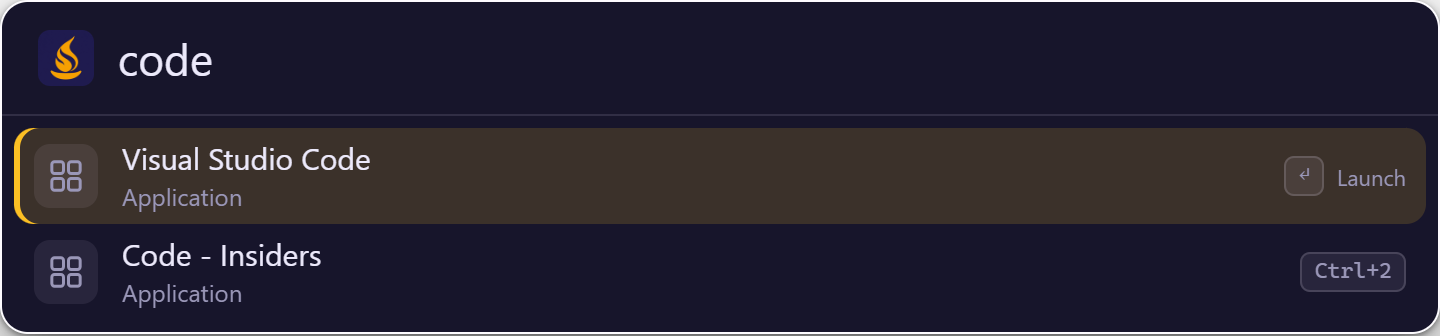
Sevak learns what you use most and ranks results by frequency and recency. Recent searches reappear first.
4. Do a quick calculation
Type 12*7 and press Enter to copy the result (84).
Paste it anywhere. Try sqrt(16), 2^10, (125+75)/4, or 10 km in mi.

Sevak handles arithmetic, unit conversion, and more. See Calculator.
5. Find a file or search the web
| Query | Result |
|---|---|
f project |
Finds files/folders matching "project" in your indexed folders (default: Desktop, Documents, Downloads) |
g rust traits |
Opens Google with that search in your browser |
yt svelte |
YouTube search |
gh tauri |
GitHub search |
Important: put a space after the keyword (f, g, yt, gh).

Make it yours
Five quick customizations in Settings:
- General: Change the hotkey and set whether Sevak starts at login
- Appearance: Choose Light, Dark, or System theme; adjust font size and window width
- Search: Set the max number of results and fallback web engine
- Files: Add more folders to search
- Plugins: Turn features on or off (Calculator, Bookmarks, Clipboard history, etc.)
Click Save when done.
More options: Configuration guide.
Watch it in action
12-second workflow demo with captions (real interface, sample results).
What's next?
- Search like a pro: Searching and launching — everything you can search and how results are ranked
- All keyboard shortcuts: Keyboard reference
- Universal Actions: Selection-based actions — search, transform, calculate or run actions on text, links or files from any app
- Deep customization: Configuration guide — hotkeys, themes, custom search engines and more
- Stuck? Troubleshooting or FAQ
Enjoy! Sevak is here to save you time.